- Open the product in the Elevate admin and navigate to its Components tab.
- Locate the first component in the list.
- Edit the component and update the Recorded On date to reflect the desired sort date.
- Save the component. The product will reorder in the widget automatically.
Product List Widgets in Elevate display products in a specific sort order. Understanding how that order is determined—and how to adjust it—lets you control exactly which products your learners see first.
How Elevate Determines Sort Order
When a Product List Widget is configured to sort New to Old or Old to New, Elevate uses a three-level priority system to determine the date it assigns to each product:
Priority | Date Used for Sorting | When it Applies |
| 1 - First | Live Event Date | Product contains a Live Webinar component |
| 2 - Second | On-Demand (Recorded On) Date | No live Webinar component; product has a video/recording component |
| 3 - Third | Product Created At Date | Webinar and no On-Demand recording date exists |
IMPORTANT NOTE
Elevate always uses the date from the first component in a product’s component list—not the most recent one. If a product has multiple components, the component listed first determines the sort date.
How to Change a Product’s Position in the Widget
You have several options for adjusting where a product appears in the list. Choose the approach that best fits your workflow.
Option 1: Update the Recorded On Date of the First Component
This is the most direct method. Changing the “Recorded On” date of the first component in a product will immediately affect where that product appears in a New-to-Old sort.
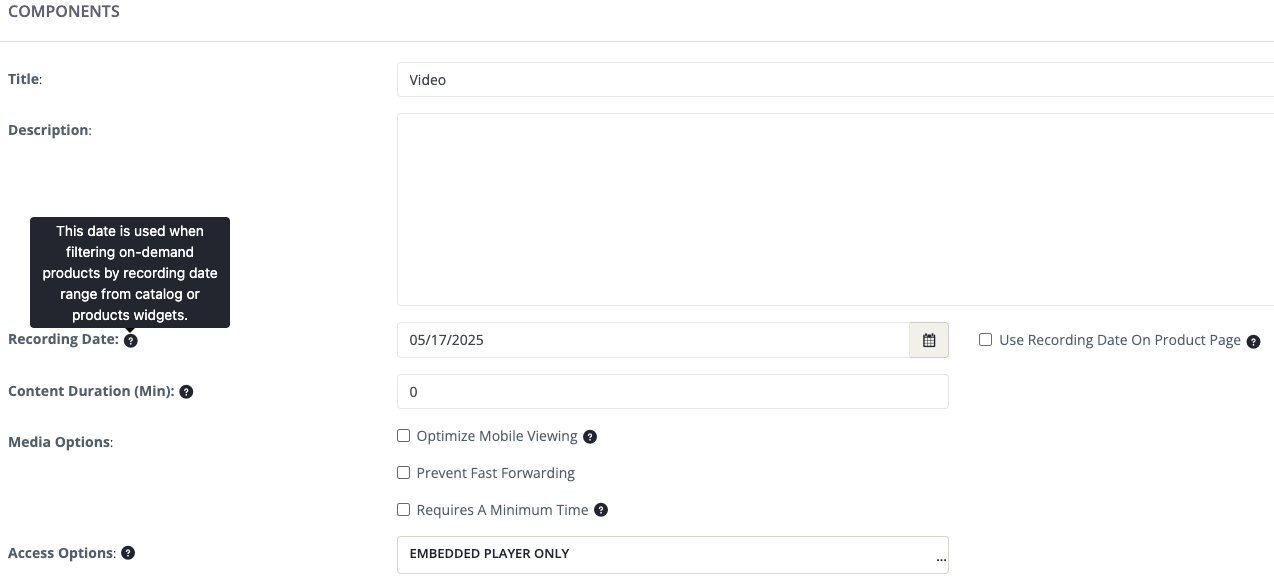
IMPORTANT NOTE
Sales start and end dates are not used by the sort order. Only the Live Event Date, Recorded On date, or Product Created At date affect a product’s position.
Option 2: Reorder the Components Within a Product
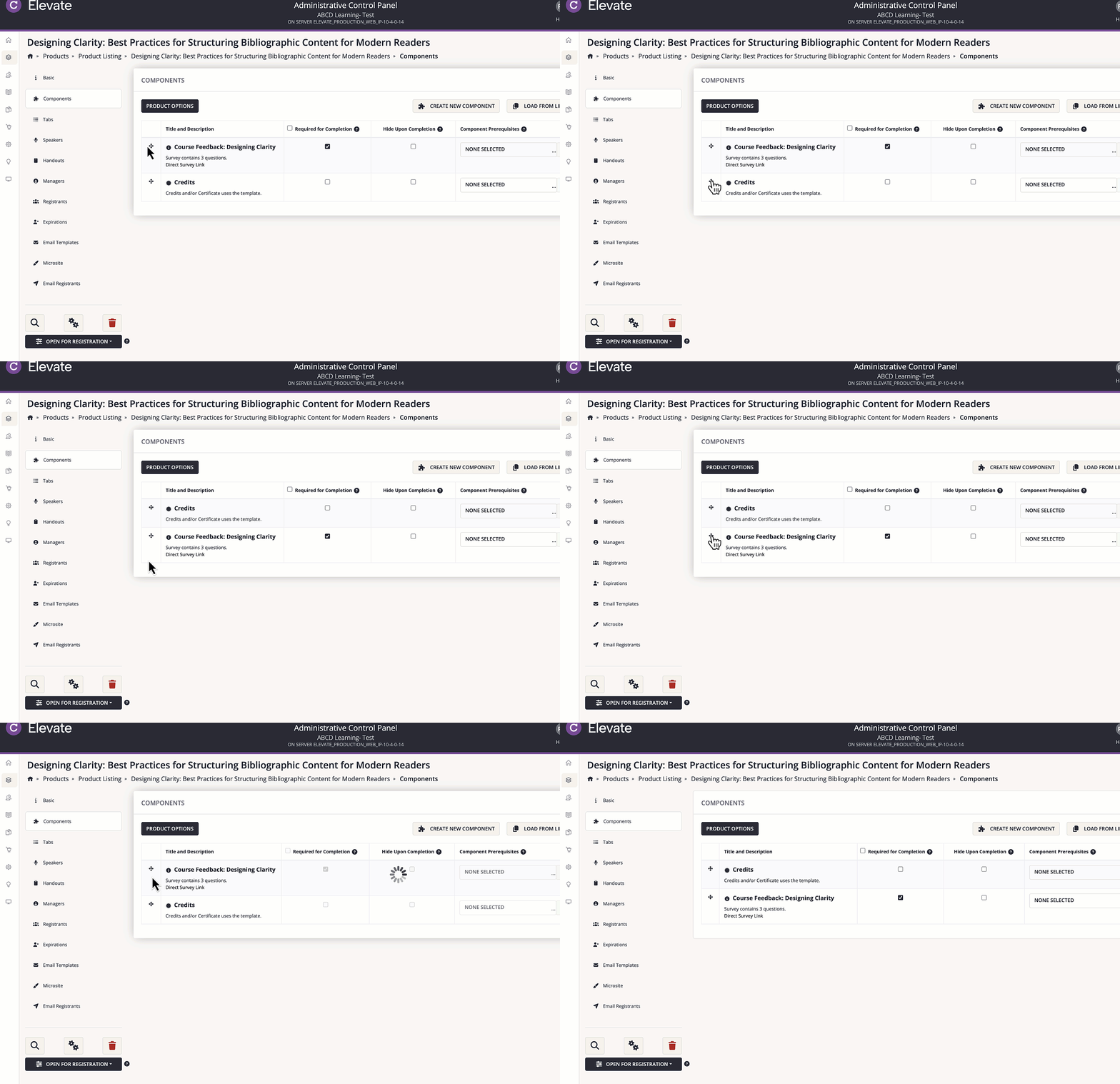
If a product has multiple components and the newest recording is not listed first, you can reorder the components so the most recent one appears at the top. Elevate will then use that component’s date for sorting.
- Open the product and navigate to its Components tab.
- Drag the component with the most recent date to the top of the list.
- Save the product. The widget will update to reflect the new sort date.
Option 3: Add a Title Prefix to Force Alphabetical Order
If you prefer to control order independently of dates, configure the Product List Widget to sort by Title (A–Z) and then prefix product titles with numbers to set the sequence.
- In the widget settings, change the sort order to: (A–Z).Title
- Edit each product title to begin with a letter, for example: A. Introduction to Travel Medicine, B. Advanced Vaccine Strategies, and so on.
- Products will now appear in the alphabetical order you defined, regardless of component dates.
Option 4: Add a Placeholder Live Webinar Component
Because Live Event Date is the highest-priority sort factor, adding a placeholder Live Webinar component to a product gives you precise control over its position. Set the Live Event Date on the placeholder to the date you want Elevate to use for sorting.
WARNING NOTE
Placeholder components will be visible to learners unless the product is configured to hide them. Review your product layout before publishing to ensure the placeholder does not create a confusing learner experience.
Last modified Apr 22, 2026
Was this article helpful?
That’s Great!
Thank you for your feedback
Sorry! We couldn't be helpful
Thank you for your feedback
Feedback sent
We appreciate your effort and will try to fix the article