This article provides supplemental details specific to how Cadmium Identity works in Lead Capture.
Cadmium Identity provides trusted, secure authentication for event and continuing education software. Many different applications use it to handle login. For general login questions, such as entering your email address, creating an account, verifying your email address, or resetting your password, read the general Cadmium Identity articles and Quick Troubleshooting Guide.
Lead Capture Mobile App
Select Log In and Cadmium Identity opens in a browser window inside the app. Enter whichever email address you would like associated with your lead and scan data. If you don’t have an account yet, you’ll be prompted to create one.
Once you’ve logged in, you’ll need an activation code associated with a license before you can start capturing leads. After you activate a license, it’s tied to your Cadmium Identity account, so the leads you scan and the notes, ratings, and other details you add are attributed to you in Lead Capture reporting.
IMPORTANT NOTE
Each license and device must be associated with a different Cadmium Identity account.
For license and activation code questions, contact the event organizer or onsite support desk for assistance.
Lead Capture Exhibitor Portal
The Lead Capture Exhibitor Portal is an administrative portal, and access to it is more restricted than the mobile app. You may have a Cadmium Identity account, but that doesn’t mean you have permission to log in to the Exhibitor Portal.
IMPORTANT NOTE
Only the main booth admin can log in. That’s the same person who manages your booth’s tasks, and the email address has to match exactly. If you don’t have permission to access the site, you’ll see an Access Restricted message.
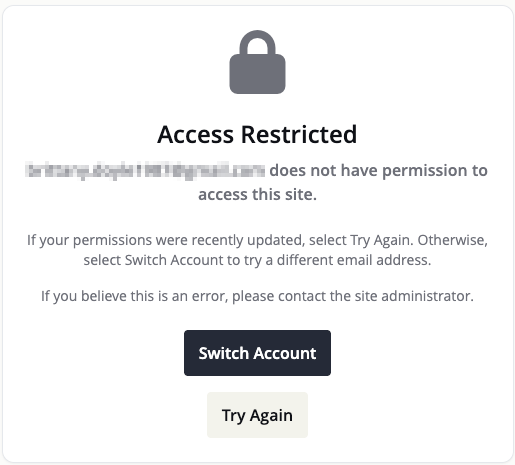
If you see an Access Restricted message, try the following:
- Confirm the email address. Log in with the same email address you use for your booth’s task list page. It needs to match exactly.
- Confirm your login URL. Each booth has its own unique Portal link. If your booth details changed at any point, your link will change as well. Use the link on your task list page, which is always current. You’ll find it either within the Access the Lead Capture Portal task or under Exhibitor Resources. The event organizer can customize the name of the task and the resources section, so the exact wording may vary slightly.
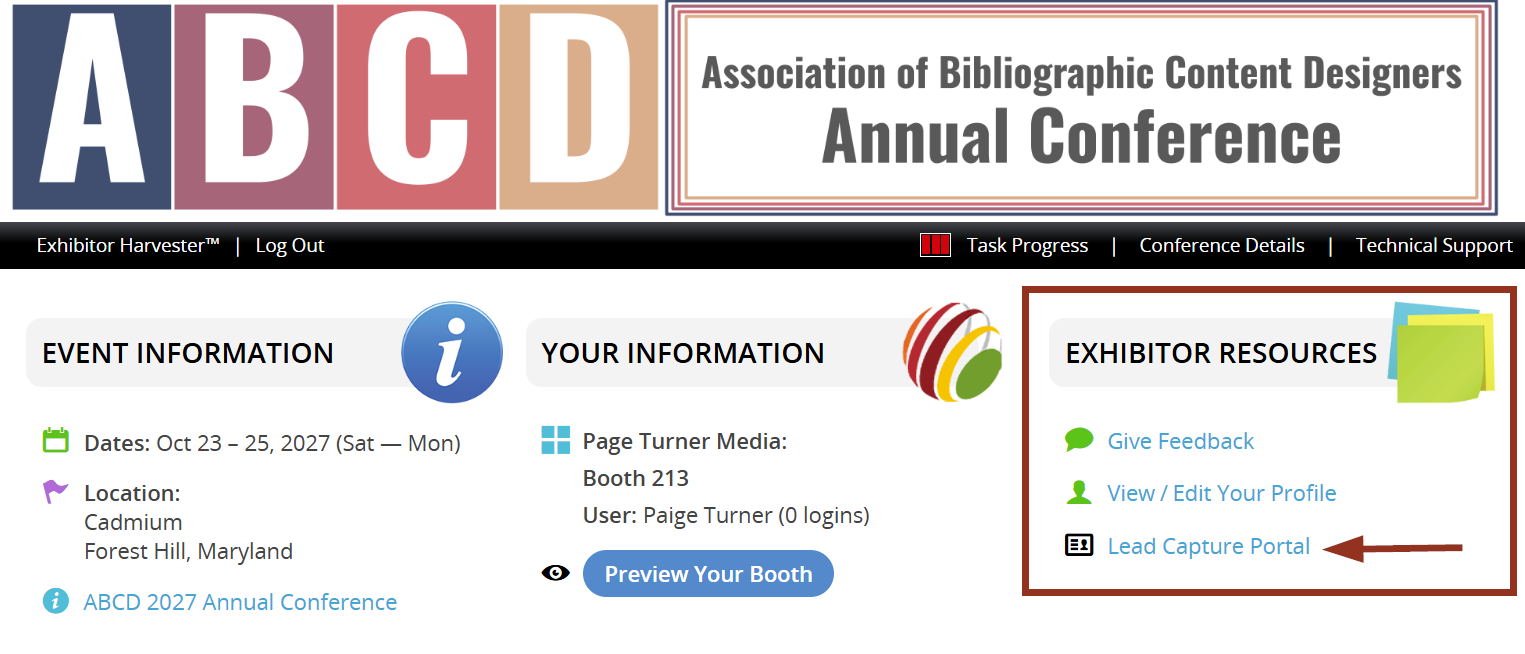
If you’ve checked both and still need help, contact Eventscribe technical support using the contact details in the footer of this page. Provide the event, company, and booth details as well as the email address you are trying to log in with.
Was this article helpful?
That’s Great!
Thank you for your feedback
Sorry! We couldn't be helpful
Thank you for your feedback
Feedback sent
We appreciate your effort and will try to fix the article