- Change Tone – Opens an additional list of options (see below).
- Make It Shorter – Condenses the text while preserving the original meaning.
- Make It Longer – Expands the text with additional detail or explanation.
- Improve Writing – Enhances grammar, clarity, and flow while maintaining the original message.
The AI Writing Assistant helps administrators quickly improve and refine text, allowing you to produce polished, professional content while retaining full editorial control before saving change.
The AI Writing Assistant is available in select Rich Text Editors (RTEs) throughout Cadmium's products and will continue to be added to additional RTEs over time.
To check if the AI Writing Assistant is available in a Rich Text Editor, look for the AI icon  in the toolbar.
Accessing the AI Writing Assistant
- Navigate to a module that uses a Rich Text Editor.
- Enter your text in the text field.
- Highlight the text you want to improve.
- Select the AI Icon in the toolbar.
- The AI Writing Assistant dialog opens with your selected text (Fig. 2).
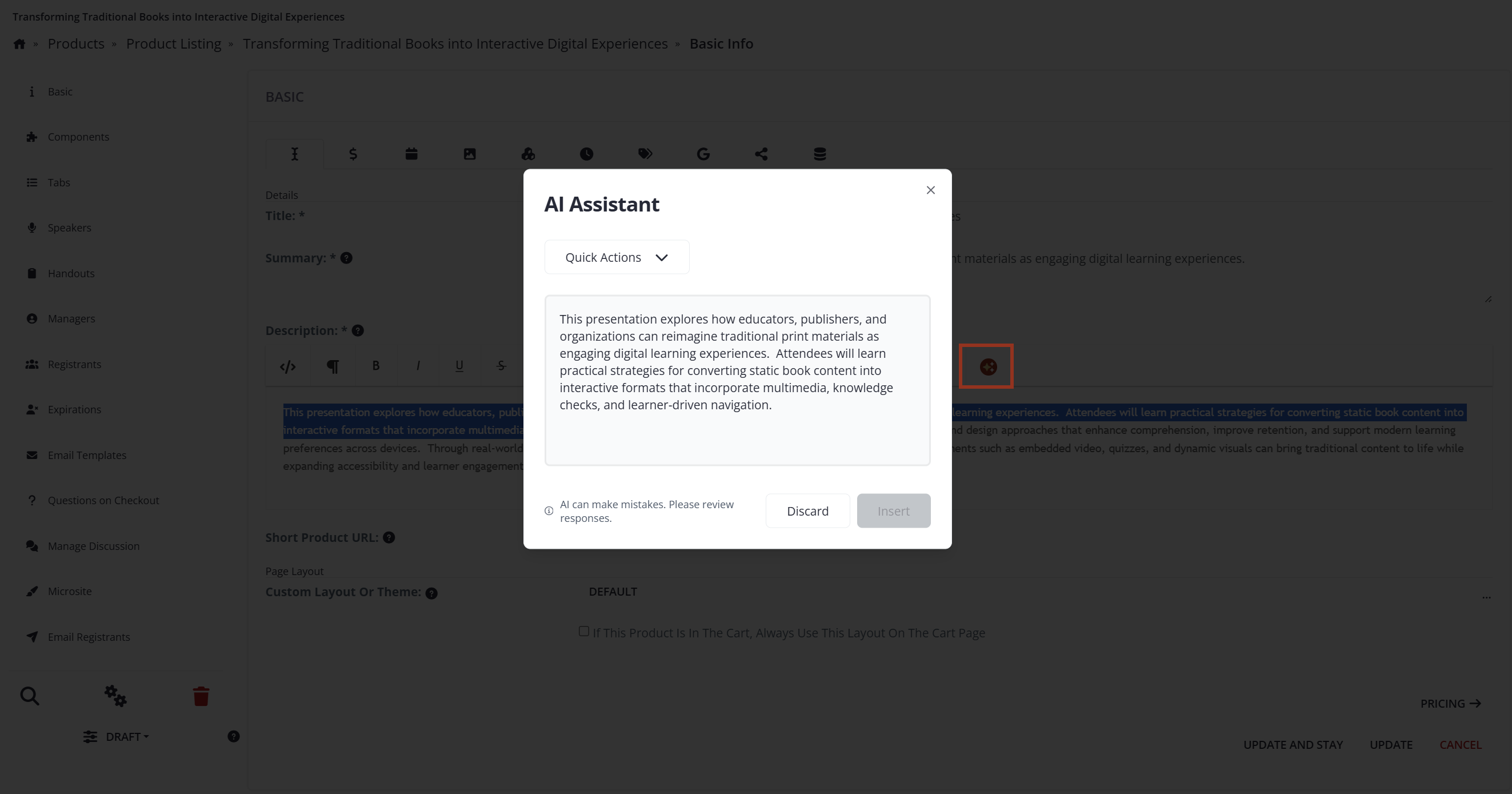
Fig. 2 - Elevate Product Description Field AI Assistant Dialog Box.
Rewrite Options
After opening the assistant, choose how you want the text to be refined.
Quick Actions
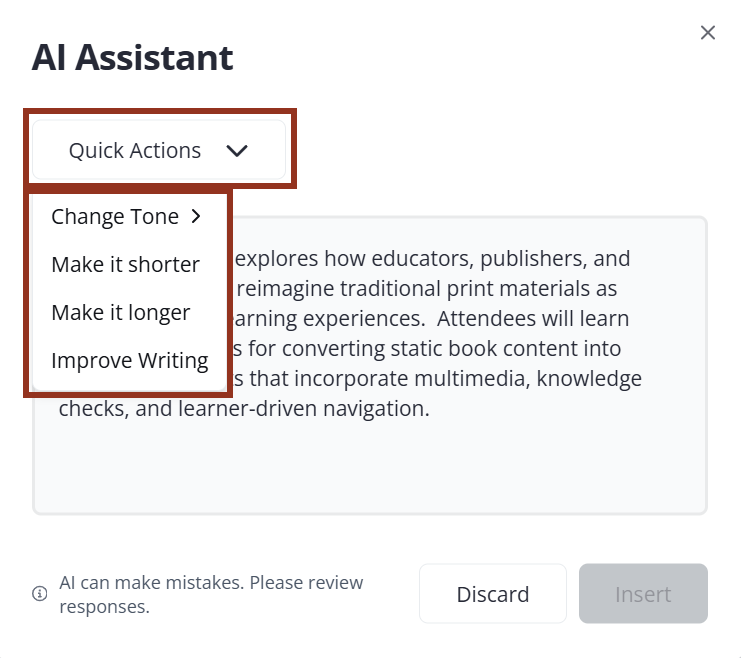
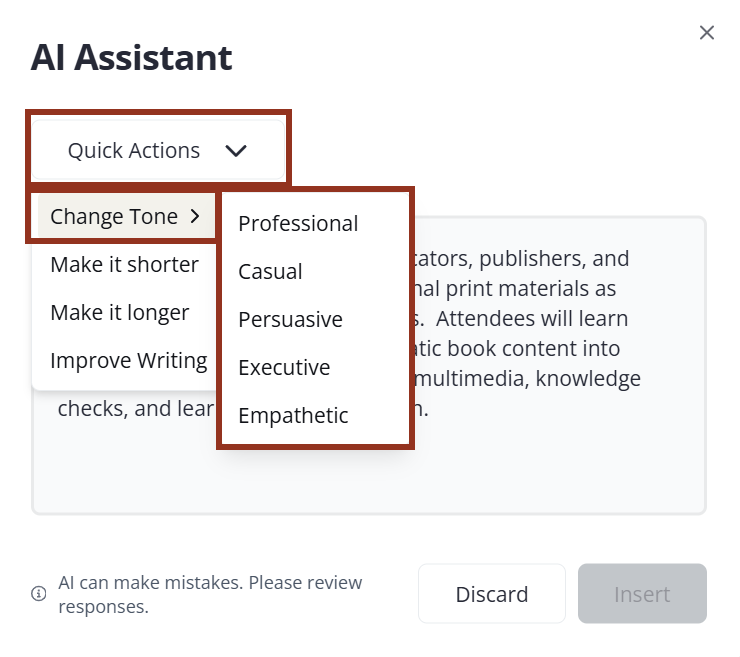
Change Tone
Adjusts the tone of your content.
- Professional – Formal and polished
- Casual – Conversational and friendly
- Persuasive – Encourages action or engagement
- Empathetic – Supportive and understanding
- Executive – Concise, high-level communication
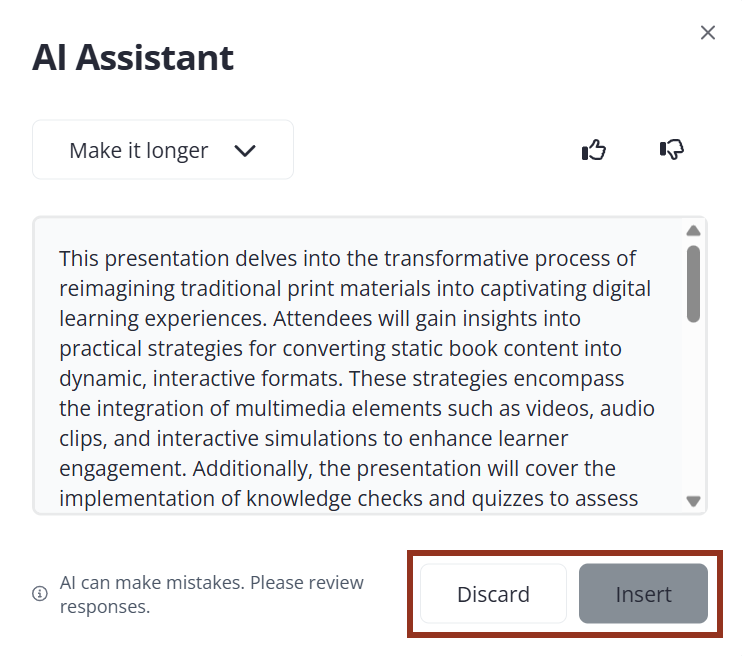
Review and Insert Results
After the AI generates updated content:
- Review the suggested rewrite.
- Select Insert to replace your highlighted text with the improved version.
- Select Discard to keep your original content.
IMPORTANT NOTE
Always review AI-generated content before saving your changes.
Provide Feedback
You may see options to provide feedback on the generated result, such as thumbs up or thumbs down.
Status Messages
While using the AI Assistant, you may see the following messages:
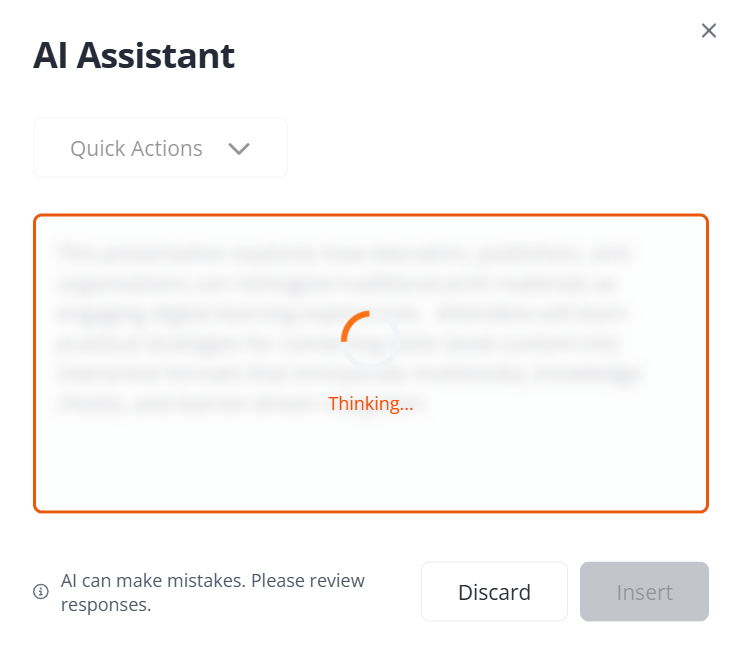
- Thinking…
The assistant is generating your content. This usually takes only a few seconds.
- Error Generating Request
If generation fails, select Retry to try again.
- Content Cannot Be Processed
If the selected text contains unsupported or restricted content, the assistant cannot process it. Modify the text or select different text and try again.
Best Practices
For the best results when using the AI Assistant Writing Tool:
- Select only the text you want rewritten.
- Keep selections focused and relevant.
- Review generated content for accuracy and context.
- Adjust the content manually after insertion if needed.
- Use tone adjustments consistently across similar content.
NOTE
Customers who wish to disable AI entirely may do so by contacting customer support. We do not currently support selectively enabling or disabling individual AI features.
Last modified Apr 10, 2026
Was this article helpful?
That’s Great!
Thank you for your feedback
Sorry! We couldn't be helpful
Thank you for your feedback
Feedback sent
We appreciate your effort and will try to fix the article